Welcome to TypaTune!
You can learn both typing and music with our app. To get started, select a song and instrument, and hit play. Each key on your keyboard corresponds to a note on your virtual piano. When the song is playing, a cursor will go through the song telling you which letter to hit. Try to time your notes exactly with the cursor! Think about the rhythm or the beats of the song, and feel free to take your time. If you are having difficulties, you can practice the notes without the accompaniment, or you can slow down the song with the tempo controls.
Basic Song Control
- You can play/pause the song in addition to stopping it
- Pressing auto-repeat will automatically start the song over (with starting beats) after it finishes. This is useful if you want to keep practicing the same piece
- Use the volume sliders to tweak your instrument volume as well as your accompaniment volume.
- The tempo slider will control how fast the accompaniment plays
- You can change your instrument as well as the octave (how high or low it sounds). Note that not all instruments support all octaves
Keyboard Shortcuts
- Pressing Enter will restart a song while its playing (or start it if it's not playing)
- Pressing Escape will pause the current song (or play the song if it's not playing)
- Pressing Space goes to the next line
- Pressing Shift+Space goes to the previous line
Playing along with song lyrics
The center tab "Song Lyrics" will show you all the song lyrics for the song that you selected. Feel free to sing along as you play your favorite song. When the accompaniment plays, a pink cursor will follow the timing of the song. Each cell it highlights contains the key to press on your keyboard, as well as all the verses. The first verse will be on the first line, the second verse on the second line, and so on.
Understanding the Grand Staff
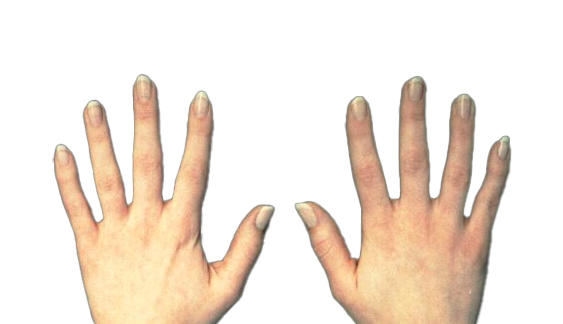
The left tab "Grand Staff / Hand Position" shows the notes you are playing, as well as the correct finger to use on your keyboard. This is a great way to learn what notes you are playing, and to get used to ten-finger typing on a keyboard.
Translating Songs
The right tab allows you to take sheet music that you already have and turn it into TypaTune songs.
Click on the signature that matches the song you are wanting to translate. The key signature is indicated on your sheet music at the beginning of your song, before the first note begins. As you click different key signatures you will notice different QWERTY keyboard key assignments.
Just by exploring a little bit, observe what's going on as you click through the key signatures and you will learn something about key signatures (sharps, flats and natural notes). But, when you are ready to translate, click on the key signature that matches the song you are wanting to translate. If you don't see any sharps or flats before your first note, click on the first key signature button, it is a C major, A minor key. When you see a note in your song with a sharp (♯), flat (♭) or natural (♮) symbol next to it, it is because your song is changing the key for that note and possibly for that measure (see the second image below). If that note repeats in the measure, even though not marked with a symbol, it too has been changed and you will need to double click it and select it just like the note with the symbol in your sheet music. After the measure line the notes return to the key that you selected when you select the songs key signature. A measure includes the notes between the two vertical lines in either the Treble Clef (the top five horizontal lines or the Base Clef, bottom five horizontal lines). Measures mark or measure the rhythm of a song and repeat from the beginning of your song to the end. If you see one of these symbols ( ♯ ♭ ♮ ) next a note then double click the note and select the appropriate symbol.
Now look at your songs sheet music, find the first note (the melody is usually the top row of notes). Now look for that note in the translate screen and click on the note that you want to translated. The appropriate TypaTune alphabet key will be added to the Translated Notes field. Again, the melody is usually the top row of notes. Continue to click notes from right to left until the song is translated.
Connecting to External MIDI devices
TypaTune allows you to connect to external MIDI devices in case you'd like to play the audio on external synthesizers (or any other device you may own).
Click on the button labelled "Connect to MIDI Device". Note that you must be using a Chromium-based browser for this to work (Edge, Chrome, etc. -- not Firefox or Safari).
Plug in your MIDI device to your computer, and click "Refresh MIDI Devices". You will see the drop-down populated with the devices that are connected (Note: you may have to allow permissions for this to work).
TypaTune will play each instrument from the accompaniment on a different MIDI channel, and the virtual keyboard will play on a separate channel.